How do I clear my browser history, cache & cookies?
Clearing your Browser History in Chrome
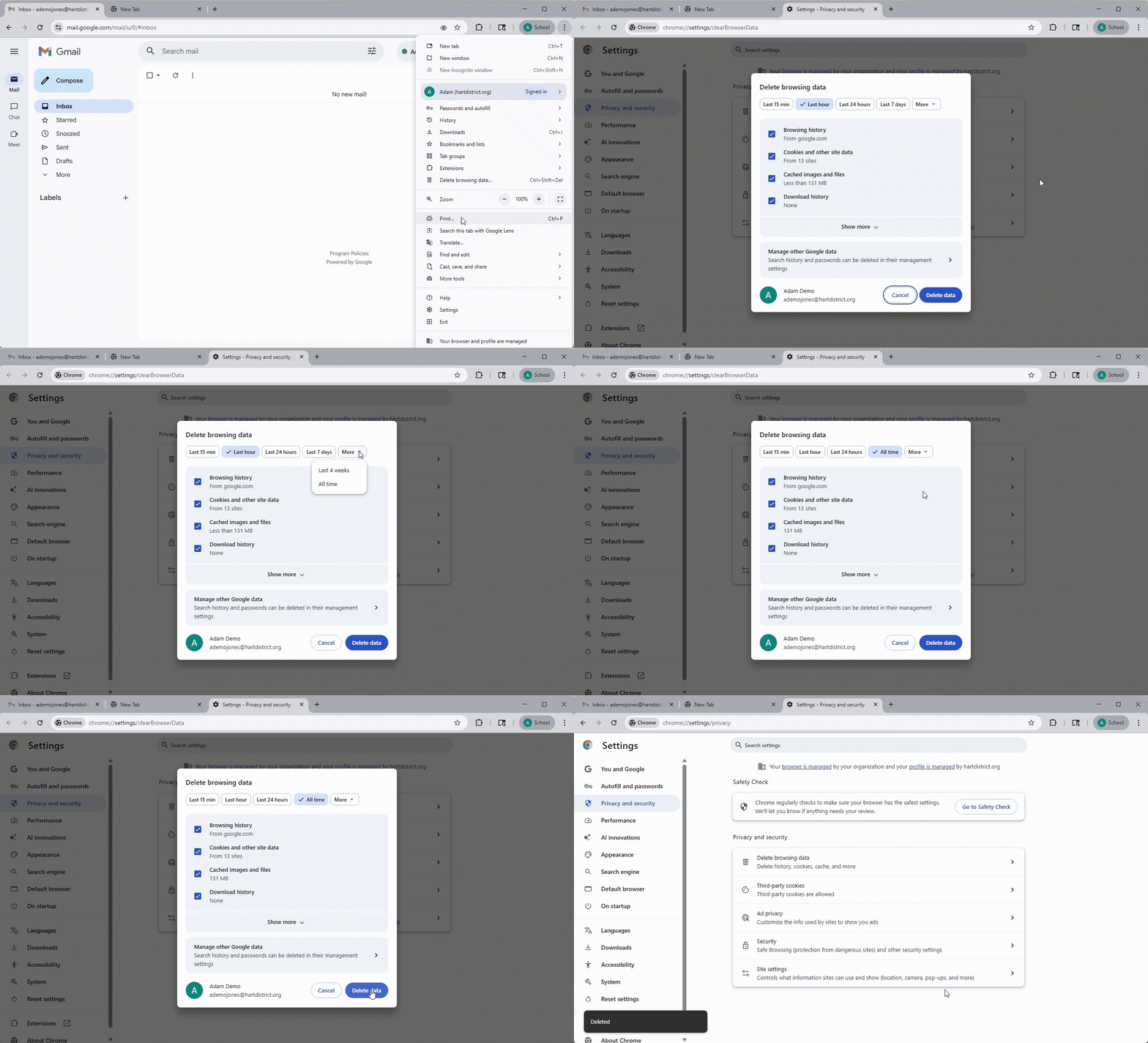
- Open your Chrome browser
- Click on the three vertical dot icon in the top right corner
- Select "Delete Browsing data..." from the menu
- Change the delete browsing data to "All Time" from the drop down menu at the top
- Click the "Delete" button
- Once it has completed please close your Chrome browser completely
Clearing your Browser History in Firefox
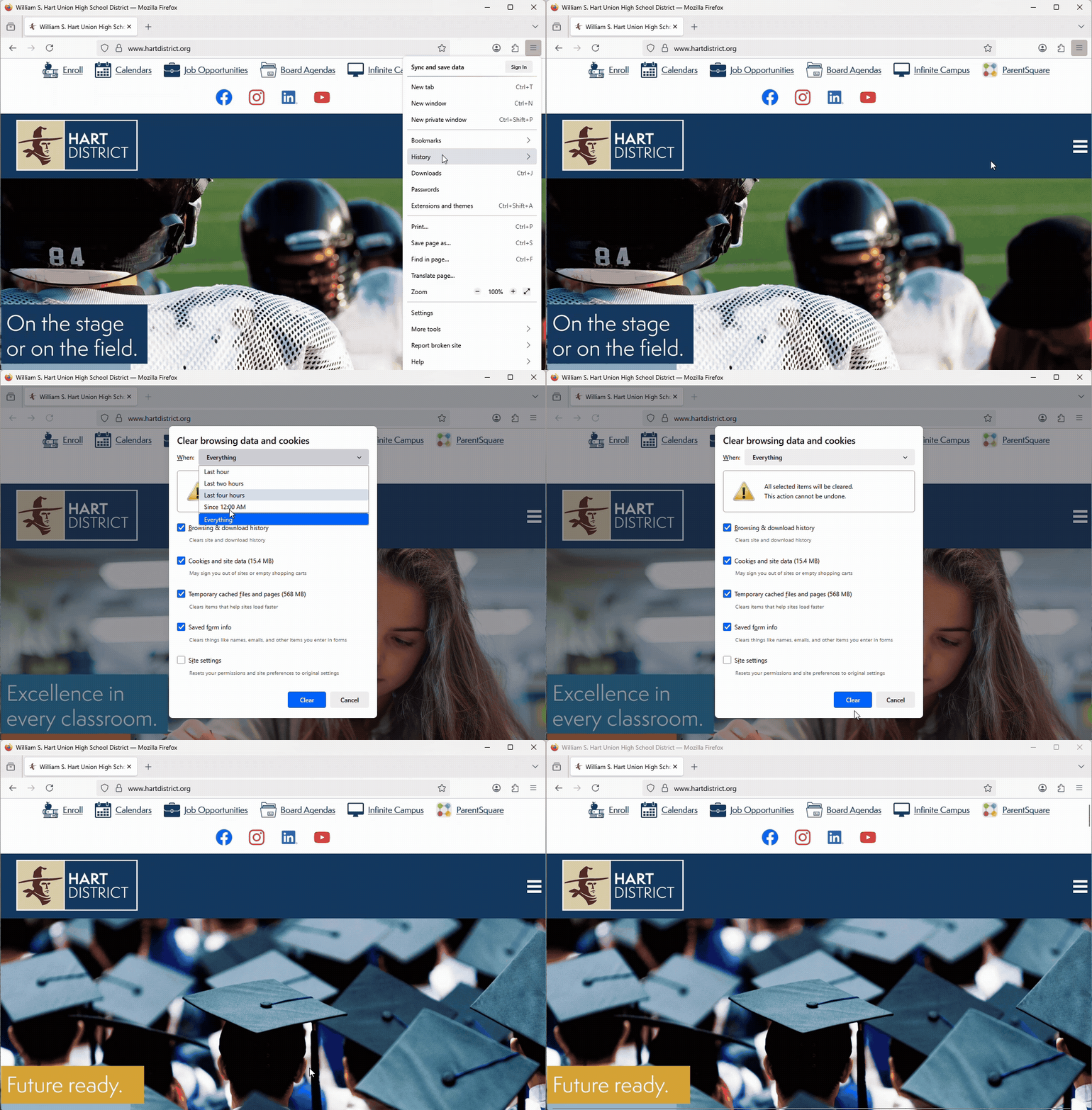
- Open your Firefox browser
- Click on the three line menu icon in the top right corner
- Select "History" from the menu
- Then select "Clear recent history..."
- Change the delete browsing data and history to "Everything" from the drop down menu at the top
- Click the "Clear" button
- Once it has completed please close your Chrome browser completely
Article is closed for comments.

0 Comments